
Windows Workflow Automation: Streamlining Routine Tasks And Processes

Automating routine operations in a Windows environment involves creating repeatable sequences that perform tasks without continuous manual input. These sequences often combine triggers, conditional logic, and actions to handle file movement, scheduled processing, notifications, or administrative chores. In practical settings this can mean configuring time-based schedules, responding to system events, or running scripted routines that standardize procedures across desktop and server systems. Automation design typically separates the triggering mechanism from the operational logic so each element can be tested and updated independently.
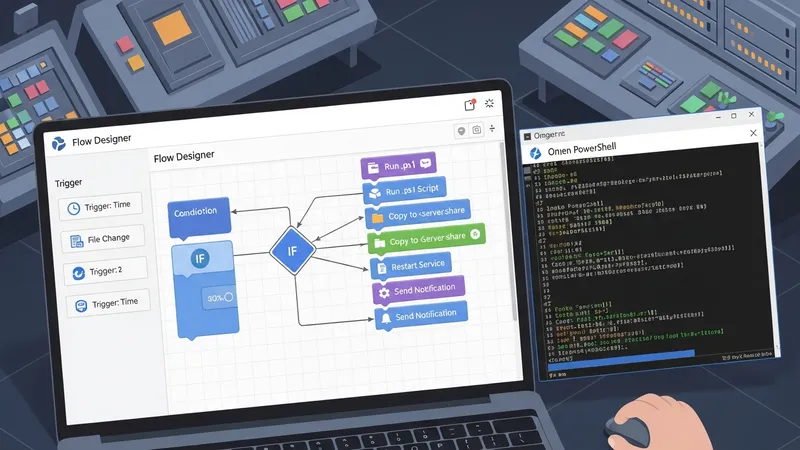
Typical components include a trigger (time, event, or file change), one or more actions (script execution, file copy, service restart), and logging or error-handling steps that record outcomes. Implementations may use graphical tools that generate executable flows or rely on scripts and command-line utilities for greater control. Environments vary from single-user desktops to enterprise servers; considerations such as permissions, auditing, and maintainability commonly influence which tools and patterns are chosen.
- Windows Task Scheduler — built-in scheduling service enabling time- and event-based execution of programs and scripts; commonly used for recurring maintenance and scheduled reports.
- PowerShell scripting with scheduled tasks — a script-first approach where cmdlets and modules automate file operations, data parsing, and system configuration; often combined with task scheduling for repeat execution.
- Microsoft Power Automate Desktop — a graphical desktop flow tool for automating UI interactions and multi-application sequences; typically applied where GUI automation or cross-application workflows are needed.
Graphical automation tools and script-based methods represent two commonly used patterns. Graphical tools often make it easier to build simple flows without deep scripting knowledge and may include built-in connectors. Script-based methods, particularly using PowerShell, typically offer finer-grained control, easier integration with version control, and more transparent error handling. In many environments teams combine both: use graphical flows for high-level coordination and scripts for specialized processing steps that require precise control or repeatability.
Triggers and scheduling patterns vary by use case and can include fixed intervals, calendar-based triggers, or event-driven triggers that respond to system logs or file system changes. Event-driven automation may rely on Windows Event Log entries or file system watchers; time-based scheduling commonly uses Task Scheduler. Designing reliable triggers often involves adding small validation steps—such as checking file integrity or system load—so actions execute only under intended conditions and avoid cascading failures.
File management and data processing are frequent targets for automation. Tools like Robocopy and PowerShell cmdlets may be used to perform synchronized copies, incremental transfers, and data validation. Automation flows typically incorporate logging of file operations, size and checksum checks where appropriate, and retry logic to handle transient network or I/O errors. Where multiple applications share data, explicit formatting and staging steps can reduce downstream parsing errors.
Security and permissions are central to operational stability. Automated tasks may run under service accounts, managed identities, or user contexts; each choice carries trade-offs for access scope and auditability. Credential handling practices such as using secure credential stores or built-in vault features can reduce exposure. Auditing and change tracking—through signed scripts, role separation, and logging—often form part of governance to ensure automation runs as intended and can be reviewed if issues arise.
In summary, automating routine Windows operations typically involves selecting triggers, composing reliable actions, and applying logging and security controls to support maintainability and auditability. Solutions may combine Task Scheduler, scripted routines, and desktop flow tools to address different needs, with trade-offs between ease of authoring and depth of control. The next sections examine practical components and considerations in more detail.