
Windows Workflow Automation: Streamlining Routine Tasks And Processes

Workflow types and common Windows automation methods
Automation workflows for Windows often fall into categories such as scheduled maintenance, event-driven responses, user-interaction automation, and batch data processing. Scheduled flows typically run at set intervals for tasks like backups or cleanup. Event-driven flows react to system or application events, for example when a service logs a specific event or a file appears in a folder. User-interaction automation mimics desktop activity to integrate applications that lack APIs. Batch processing workflows handle bulk file or data transformations and often run during off-peak hours to reduce contention with interactive users.
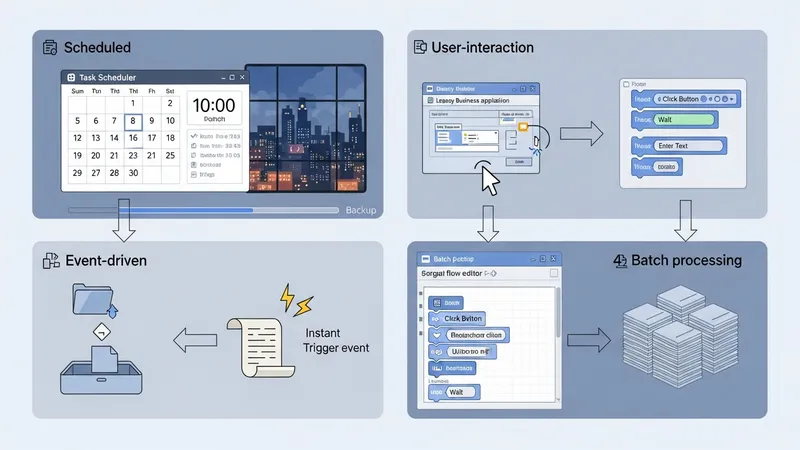
Each method commonly leverages specific tools introduced earlier. Task Scheduler is frequently used for time-based schedules and can host scripts or executables. PowerShell is often chosen for batch processing and administrative tasks because it can access system APIs, parse structured data, and integrate with other Windows management interfaces. Graphical flow tools may be used where interactions with user-interface elements or cross-application steps are needed, recognizing these can be more sensitive to UI changes and may require additional monitoring.
When selecting an approach, teams often weigh maintainability, observability, and portability. Scripted approaches may be easier to store in version control and review through code diffs; graphical flows can be faster to compose for simple sequences but may require separate export/versioning strategies. Considerations such as the frequency of changes, the need for parameterization, and the expected lifecycle of the automation typically influence whether a scripted or GUI-driven pattern is applied.
Insider considerations include designing idempotent actions where possible so repeating a flow has predictable results, and partitioning workflows into discrete steps that can be retried independently. Logging formats that include timestamps, unique run identifiers, and error details aid troubleshooting. Testing automation in a staging or isolated environment often reveals environment-specific dependencies such as missing modules or permission boundaries before production deployment.